Small Plugins
Products
Use Cases
Pricing
Get Help
Log in
Become a Member
Home / Articles / Image Overlay Cues

A Quick Start Guide: how Easiest Party Ever uses Image Overlay Cues

Author:

smallplugins

Published:

December 10, 2024

This site runs ads and generates income from affiliate links. Read my disclosure policy.

How  Easiest Party Ever uses Image Overlay Cues on WordPress, 8 steps

Start in your respective WordPress Admin Dashboard.

How I added Image Overlays to images in 5 minutes on my post “Let’s Get Witchy: A Witch-Themed Brunch Setup”

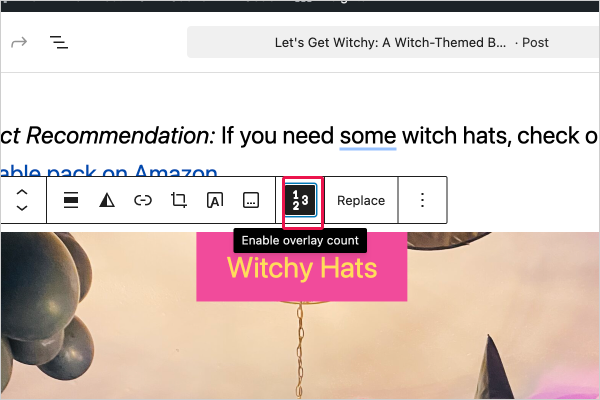
Click on the button “Enable overlay count”
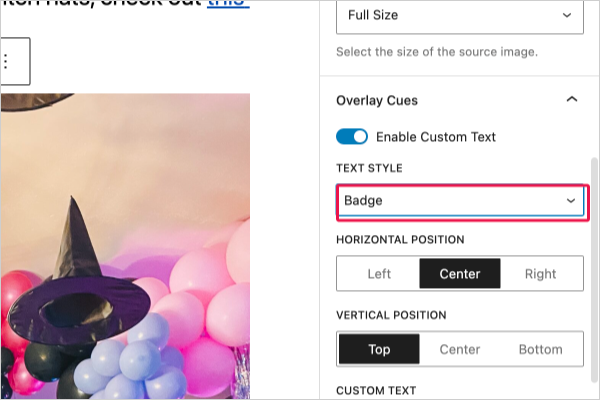
Click on the checkbox “Enable Custom Text”
Choose from 3 text options that use your system fonts “Default Badge Stroke”
Input text here
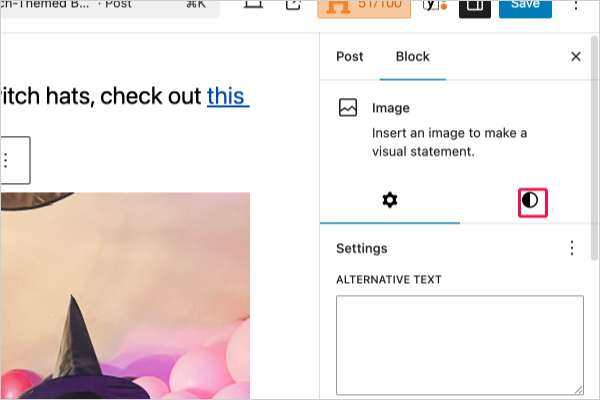
Click on the button “Styles” to change font & background color
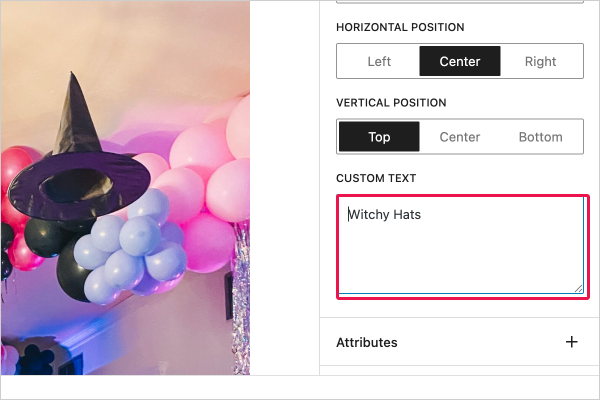
Assign colors how you’d like in either of these options!
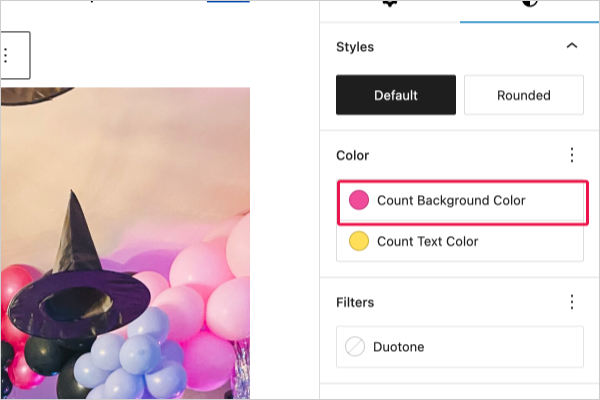
Here’s what I click to change font color
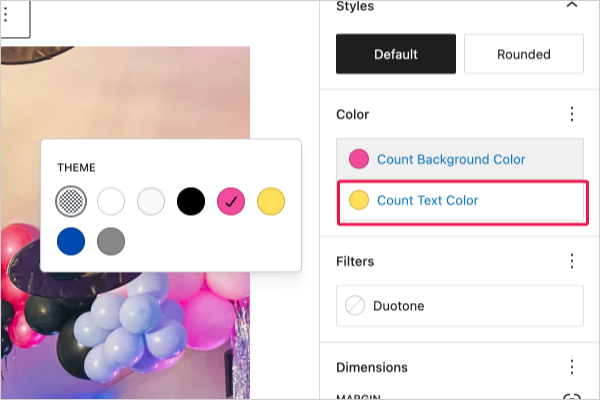
And this is what the final product looks like- 5 minutes later!

Follow us on YouTube!

We share tutorials to help you implement our plugins and level up your site’s content on our YouTube channel.

Leave a Reply Cancel reply

Your email address will not be published. Required fields are marked *

Resources

About
Blog
Support
Roadmap
Email List
Affiliates
Membership

Products


Advanced List Extension
Automatic Block Inserter
Automatic FAQ Toggle
Category Labels Block
Clear Content Button
Device Display for Blocks
Dynamic Connector Block
Featured Comment Block
Form Tags for Recipes
Genesis Description Fallbacks
Grid Variation Options
Image Overlay Cues
Manage Available Patterns
Navigation Block Controls
Post Date Smarter Modified
Post Type Exclusives
Post Type Product Links
Query Loop Advanced Operators
Query Loop Exclude Current Post
Query Loop Post Selector
Remove Last Item from Yoast Breadcrumb

Terms & Conditions
Privacy Policy
Refund Policy
Coupon Codes

© Small Plugins